
Shrinkray guide · iPhone
How to Compress a Video on iPhone
Make an iPhone video easier to share. Choose a preset, check the result, and send a smaller copy while keeping your original.
Updated

iPhone · iOS 18 or later · Free with optional one-time Pro purchase
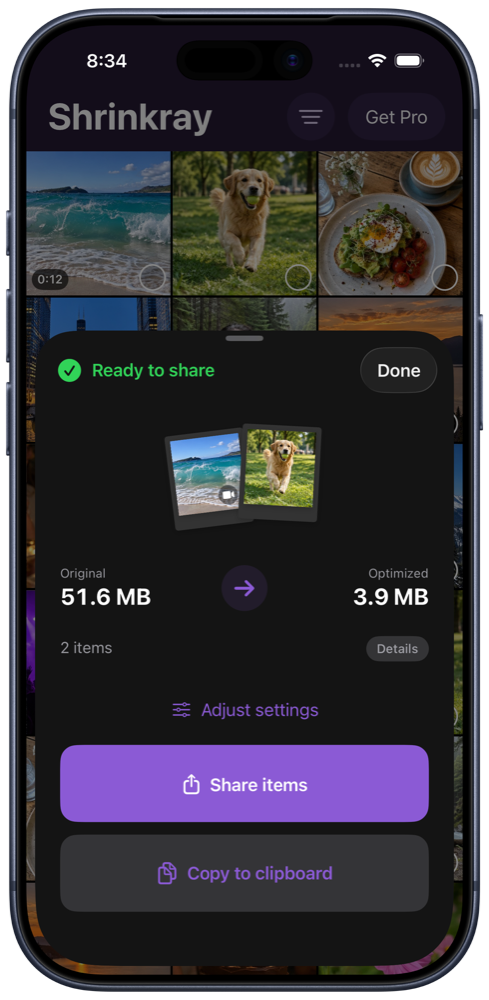
Compress an existing video
- Choose the video. Open Shrinkray and select a video. Or open Photos or Files, select the video, tap Share, and choose Shrinkray.
- Choose a preset. Choose a balance of size and quality for your video. Pro adds more video quality settings and custom file size limits.
- Shrink and compare. Compress the video and compare file sizes. Play the result to check motion, faces, and any small text.
- Share the smaller copy. Choose your destination from the sharing options. Shrinkray leaves the original in your library untouched.
If Shrinkray is missing from the share sheet, look under More in the app row or Edit Actions in the action list. The share-sheet setup instructions cover this in more detail.
Find the right size and quality
The best setting depends on the video. A quiet scene may need less detail than a fast-moving sports clip, even at the same resolution.
If the file is still too large, try a smaller preset. If faces or movement look blurry, try a higher-quality setting. Start each attempt from the original to avoid losing detail with repeated compression.
For a specific destination, follow the email attachment guide or the Messages guide. Each explains the relevant limits and sharing steps.
Can I do this with iMovie?
Yes. Apple describes a free alternative in its iPhone video compression guide: add a video to an iMovie project and export it at a lower resolution. Available options depend on your iPhone, iOS, and iMovie versions.
Shrinkray offers a direct compression workflow from the app or share sheet, so you can compare file sizes before sharing. Pro adds custom file size limits when a destination has a particular cap.
Will it preserve quality?
A smaller file can lose some detail. Preview the compressed video to decide whether the quality is right for what you want to share.
If the original quality matters more than attachment size, consider sharing the original through a file-sharing service. Changing Camera settings affects future recordings; it does not shrink a video you already recorded.
Free compression, originals kept
You can compress one video at a time for free with the included settings. Pro is a one-time purchase that adds more controls, video splitting, and batch compression after the free allowance.
Compression takes place on your iPhone without uploading your video to a compression service. Shrinkray makes a smaller copy; it does not replace or delete the original. It makes the file easier to share; it does not automatically free up space in your photo library.
Try Shrinkray for free.
Compress one photo or video at a time with the included settings. Your originals stay untouched.
iPhone · iOS 18 or later · Free with optional one-time Pro purchase