
Shrinkray guide · iPhone
How to Compress a Video for Email on iPhone
Get a large video ready to email. Make a smaller attachment, leave room for other files, or choose a download link for a longer recording.
Updated

iPhone · iOS 18 or later · Free with optional one-time Pro purchase
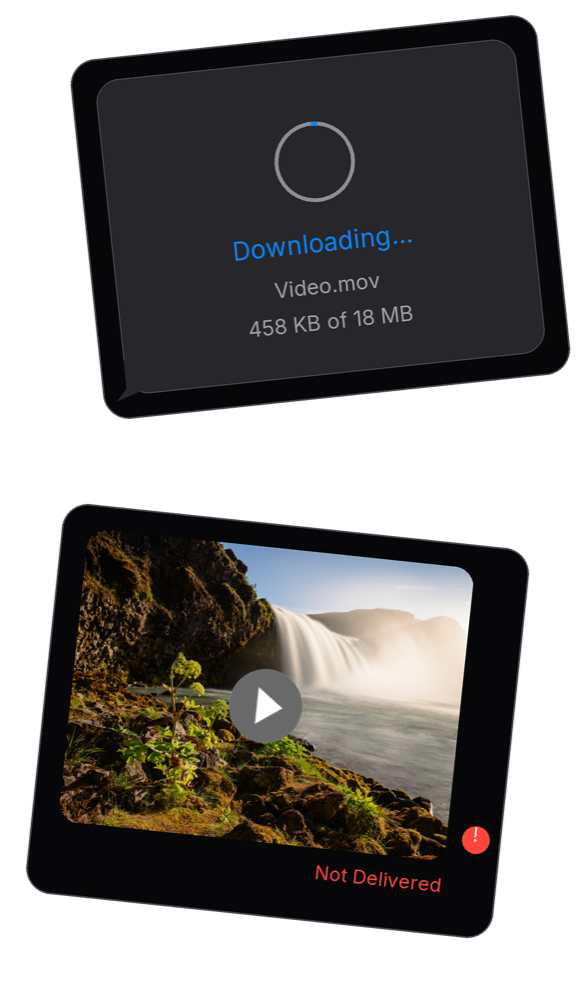
Check the attachment limit
Google’s Gmail help lists a 25 MB attachment limit for personal accounts. When the total is over the limit, Gmail uses a Google Drive link. Work and school account limits are set by the administrator.
Other providers—and your recipient’s account—may have lower limits. Count all attachments and leave room below the maximum.
For example, with a 25 MB limit and 4 MB of photos attached, aim for a video comfortably below 21 MB.
Compress and attach the video
- Choose your video. Open it in Shrinkray, or select it in Photos or Files, tap Share, and choose Shrinkray.
- Choose a smaller size. Try an included preset. Custom file size limits require Pro.
- Check the result. Check that the new file fits alongside your other attachments. Preview the video and check both picture and sound.
- Attach the smaller copy. Share the result to your email app when available, or save the result and attach that file from the email composer. Remove the original attachment if you already added it.
- Review and send. Check the attachment and recipients, then send.
If the result is still too big, try a smaller preset from the original video. See how to choose compression settings if you are unsure how much quality to trade for size.
Attachment or download link?
A smaller attachment is useful when the recipient needs the file in the message or the destination does not accept links. A download link lets the recipient get the file separately.
If you need to preserve the original quality, a link may be a better fit. Gmail can use Google Drive for large files. Apple’s Mail Drop sends large attachments through iCloud and supports messages including attachments up to 5 GB, subject to its service limits. These options can suit long recordings that would lose too much detail as a small attachment.
Still getting “too large”?
Check that you attached the compressed copy, not the original from Photos. Then check the total size of all attachments and the recipient’s limit. Reducing one video does not help if the rest of the message already exceeds the cap.
For very long videos, choose a download link or, with Shrinkray Pro, split the video into smaller clips. If you split a recording, putting every clip in the same email still counts toward the same total attachment limit.
What is free?
Shrinkray lets you compress one video at a time for free with the included settings. Custom file size limits, more video quality settings, and video splitting require Pro. Pro is a one-time purchase, with no subscription.
The video is processed on your iPhone and the original stays untouched. Emailing the result sends the copy through your chosen email service.
Try Shrinkray for free.
Compress one photo or video at a time with the included settings. Your originals stay untouched.
iPhone · iOS 18 or later · Free with optional one-time Pro purchase