
Shrinkray guide · iPhone
How to Send Smaller Videos in iPhone Messages
Make a video smaller before texting it. Start in Photos or Shrinkray for free, or compress and attach it inside Messages with Pro.
Updated

iPhone · iOS 18 or later · Free with optional one-time Pro purchase
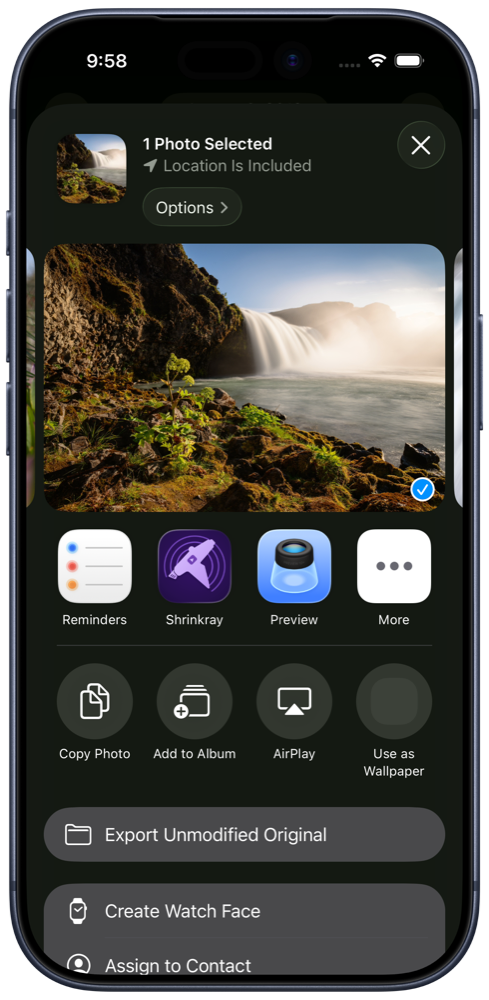
Start in Photos for free
- Select a video. In Photos, select the clip you want to send and tap Share. Choose Shrinkray. You can also choose the video in the main Shrinkray app.
- Compress a copy. Choose an included preset and shrink the video. One item at a time is free; extra video settings and custom file size limits require Pro.
- Check playback and size. Compare file sizes and preview the result. If the picture or motion looks worse than you want, try a higher-quality setting from the original.
- Share to Messages. Share the result to Messages, choose a recipient, and tap Send.
If Shrinkray does not appear in Photos, check More in the app row or Edit Actions in the action list. The support page has setup details.
Shrink inside Messages with Pro
To work inside a conversation, unlock or restore Pro in the main Shrinkray app first. Then open Messages, enter a conversation, tap the plus button, and choose Shrinkray. Look under More if it is not in the first list.
Select your video, choose your settings, and shrink it. A single result can be added to the Messages composer. Review it and tap Send. For several results, follow Shrinkray’s copy instructions, return to the conversation, and paste the media into the message field.
If the Messages app is missing, check Settings → Apps → Messages → iMessage Apps and enable Shrinkray. See Messages setup and troubleshooting for purchase and restore help.
What size can Messages send?
Messages can deliver conversations through iMessage, RCS, or MMS. The delivery method depends on the participants and service availability. A green bubble alone does not identify one universal attachment limit.
Apple notes in its Messages photo and video guide that carriers may limit attachment sizes and iPhone may compress media when necessary. Compressing first lets you check a smaller copy, though delivery limits and further compression still depend on the service.
If sending fails, check your connection and whether the conversation uses iMessage, RCS, or MMS. Then try a smaller copy if needed. A file-sharing link can be a better choice when maintaining the original quality is more important than sending an attachment.
Keep it clear enough to watch
Check moving subjects as well as still detail. A paused frame can look clear even when motion looks blurry. Compare playback as you try different presets.
For a long recording, Pro can split it into smaller clips. Choose a few useful clips to keep the video easy to follow. The general video compression guide explains the size and quality trade-off.
Your original stays untouched
Shrinkray processes your video on your iPhone without uploading it to a compression service. It creates a copy and leaves the original untouched. Sending that copy uses the messaging service selected by Messages.
Using Shrinkray within Messages requires Pro. Starting with a single video in the main app or Photos share sheet uses the free included settings. Pro is a one-time purchase with no subscription.
Try Shrinkray for free.
Compress one photo or video at a time with the included settings. Your originals stay untouched.
iPhone · iOS 18 or later · Free with optional one-time Pro purchase