
Shrinkray guide · iPhone
How to Compress an iPhone Screen Recording
Make an iPhone screen recording easier to send while keeping text readable and audio clear. Use it for a bug report, app demo, or tutorial.
Updated

iPhone · iOS 18 or later · Free with optional one-time Pro purchase
Find the recording in Photos
Apple saves iPhone screen recordings in Photos. Open the recording there, tap Share, and choose Shrinkray. You can also select it in the main Shrinkray app.
If the recording includes time before or after the part you need, trim a copy in Photos first. Keep the steps leading to a bug or the context needed to follow the tutorial.
Compress and check the important parts
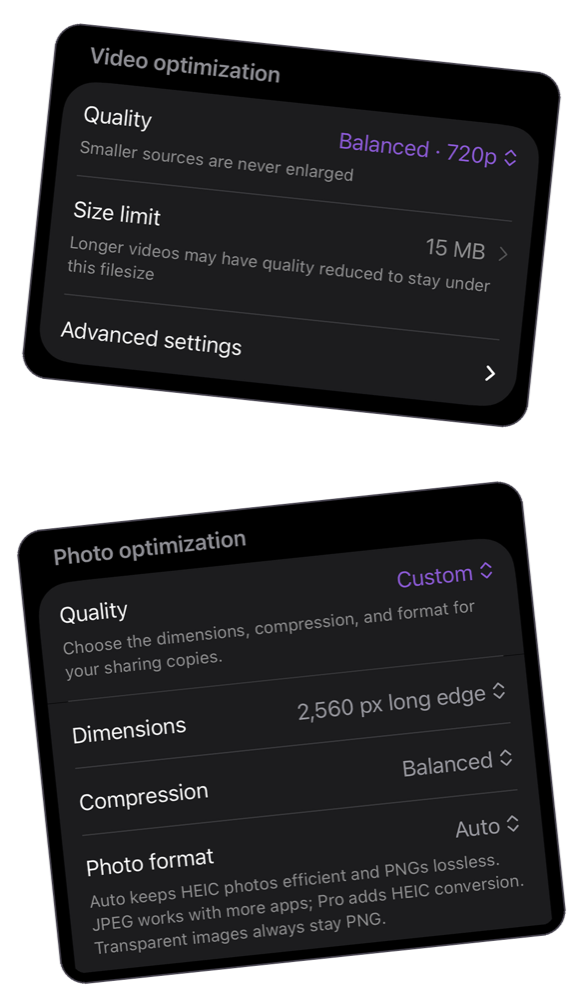
- Choose a preset. Start with the included settings. Use the target-size guide if a support form or chat has a file limit.
- Compress a copy. Compare the new size with the original and with the destination’s limit.
- Pause on small text. Check menus, error messages, and labels. If they are hard to read, try a higher-quality setting from the original.
- Play it through. Check scrolling and taps, and listen to narration or app audio if it was recorded.
- Attach the result. Share the smaller copy to your destination, or save it and choose that copy in the upload form.
For a bug report or tutorial
Keep error messages readable in a bug report. For a tutorial, make sure viewers can follow your taps and identify each control.
Preview the result at a normal viewing size. If the file limit forces too much detail loss, send a shorter demonstration or a download link instead. Check the original too: compression cannot restore missing text or audio.
Keep the original recording
Shrinkray creates a separate copy on your iPhone and leaves the original untouched. Compress one video at a time for free with the included settings. More video quality options, custom size limits, and automatic splitting require Pro, a one-time purchase.
For a long walkthrough, the splitting guide explains when several clips can work better than one small file.
Try Shrinkray for free.
Compress one photo or video at a time with the included settings. Your originals stay untouched.
iPhone · iOS 18 or later · Free with optional one-time Pro purchase