
Shrinkray guide · iPhone
Send Multiple iPhone Photos Without an iCloud Link
Send photos and videos as attachments without an iCloud Photos link. Shrink them together, then attach the smaller copies to a message or email.
Updated

iPhone · iOS 18 or later · Free with optional one-time Pro purchase
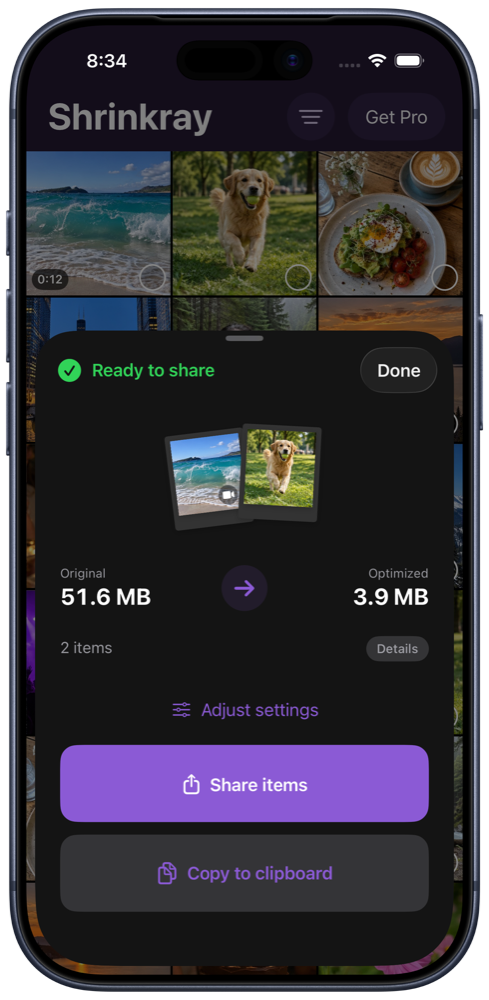
Attachments instead of a collection link
An iCloud Photos link shares access to a collection. An attachment sends a file through your chosen app. If you want someone to receive the photos or clips directly, smaller copies can be easier to attach and download.
Apple explains that iCloud Links expire after 30 days. They can still be a good choice for a large collection or original-quality files. Shrinkray provides a different option when you want smaller attachments.
Compress several photos and videos together
- Select the items. Choose several photos, videos, or a mixture in Shrinkray. Or select them in Photos, tap Share, and choose Shrinkray.
- Choose the settings. Choose your photo and video settings, then compress the selection.
- Review the results. Check photo detail and video playback, and compare sizes before sharing.
- Send the attachments. Choose your email or messaging app from the sharing options. Review the composer to confirm it contains the copies rather than a collection link.
If the destination offers a link instead, choose its file or media attachment option when available. The sharing app’s attachment limits and Apple’s settings still apply.
Free batch use and Pro
The main app and Photos sharing extensions include a limited free allowance for shrinking several items together. Pro unlocks batch use after that allowance runs out. It is a one-time purchase, with no subscription.
You can also compress one photo or video at a time for free with the included settings. Using Shrinkray inside Messages is a separate Pro feature.
Sending several items in Messages
With Pro, you can open Shrinkray inside a Messages conversation. For multiple results, follow the app’s copy instructions, return to the conversation, and paste the media into the message field. Review the attachments before sending.
The Messages handoff instructions explain this flow. Starting from Photos and sharing the resulting copies is another option.
Keep the whole selection manageable
Several smaller files can still exceed a message’s combined attachment limit or an app’s item-count limit. Split a large selection into smaller groups if needed. See the email guide for combined size limits.
Shrinkray creates copies on your iPhone and keeps the originals untouched. You can send these attachments while keeping iCloud Photos turned on.
Try Shrinkray for free.
Compress one photo or video at a time with the included settings. Your originals stay untouched.
iPhone · iOS 18 or later · Free with optional one-time Pro purchase