
Shrinkray guide · iPhone
How to Reduce Photo File Size on iPhone
Make a photo small enough for an email or upload form while keeping it clear. Shrinkray creates a smaller copy and keeps your full-size original.
Updated

iPhone · iOS 18 or later · Free with optional one-time Pro purchase
Read the upload requirements
Check the form before changing your photo. It may require a file under 1 MB, specific pixel dimensions, or a particular format. Your photo needs to meet all of those requirements.
- KB or MB: how much data is in the file. This is the number to check for a file-size limit.
- Pixels: the image width and height. Resizing changes these dimensions.
- Format: the kind of image file the form accepts. A smaller file can still be rejected if its format is unsupported.
For document uploads, make sure any required text stays readable.
Compress the photo on iPhone
- Select your photo. Open Shrinkray and choose the image, or select it in Photos or Files and choose Shrinkray from the share sheet.
- Start with the included settings. Compress the photo and compare the original and new file sizes. One photo at a time is free.
- Check the details. Zoom in on the result. Look at faces, edges, and any text that needs to stay readable.
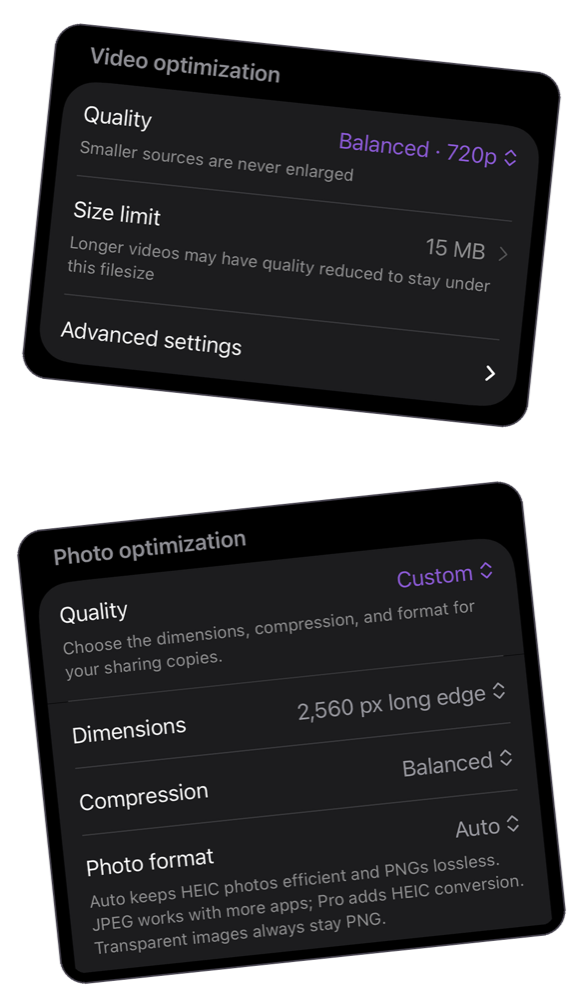
- Adjust if needed. Pro adds custom photo dimensions, quality, and format controls, plus custom file size limits. Choose settings that fit the form, then check the actual exported result.
- Use the smaller copy. Save or share the result. For a browser form, return to the file picker and choose the smaller copy.
Need a photo under 1 MB?
Aim below the form’s limit and check the final file size before uploading. Compression results vary, so a setting alone does not guarantee a file under 1 MB or 500 KB.
If your first result is too large, try a lower photo quality or smaller dimensions with Pro. Keep the image large enough for its purpose. An already small or heavily compressed image may not shrink much further.
If the size is right but the upload still fails, recheck the accepted format and dimensions. Changing a filename extension does not convert the image.
Email one photo or several
For email, consider the combined size of all the photos you attach. Several small images can still exceed the message limit. Compress one at a time for free, or use the limited free batch allowance in Shrinkray and its Photos sharing extensions. Pro unlocks batch use after that allowance.
Sending a video too? The email guide explains attachment budgets and alternatives for larger files.
Keep your original photo
Shrinkray creates a separate copy and leaves the original untouched. Compression happens on your iPhone without uploading the photo to a compression service. The copy may lose detail depending on your settings, so check it before sending.
Custom photo controls require Pro, which is a one-time purchase. See what’s included with free and Pro.
Try Shrinkray for free.
Compress one photo or video at a time with the included settings. Your originals stay untouched.
iPhone · iOS 18 or later · Free with optional one-time Pro purchase