
Shrinkray guide · iPhone
Shrinkray vs iMovie on iPhone
Use iMovie when you want to edit a video and export a smaller version. Use Shrinkray when your main job is making an attachment fit and sharing it.
Updated

iPhone · iOS 18 or later · Free with optional one-time Pro purchase
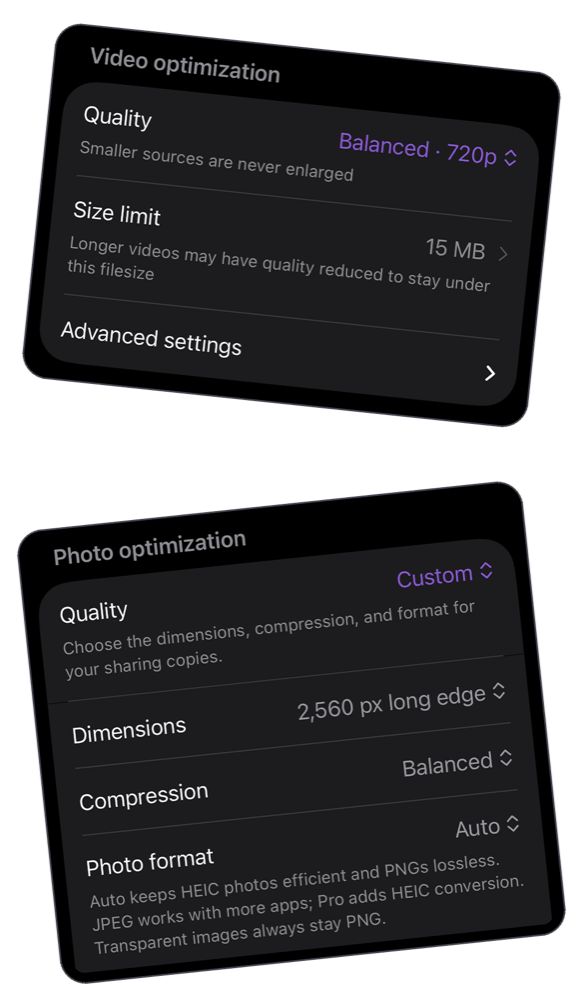
Choose by the job
| What you need | Shrinkray | iMovie |
|---|---|---|
| A smaller video for free | One item at a time with included settings | Export a project at a lower resolution |
| A particular attachment budget | Custom file size limits with Pro; check the exported size | Apple’s documented workflow chooses resolution rather than an MB limit |
| Editing a movie | Focused on compression and sharing | Timeline editing before export |
| Photos as well as videos | Compress photos and videos | The workflow here exports a movie |
| Several separate attachments | Limited free batch allowance; Pro unlocks continued batch use | This guide covers exporting one movie project |
| Payment | Free download; optional one-time Pro purchase | Free download |
This is a workflow comparison, not a head-to-head speed or picture-quality test. Neither app can promise that every video will fit a tiny budget and keep all its detail.
Try iMovie first for a simple export
If you already use iMovie, it may be all you need. Add your clip to a Movie project, finish editing, then use Share → Save or Share Video → Options to choose a lower resolution. Save the copy and check its size before sending.
Apple’s instructions describe the latest workflow for iPhone 12 or later with iOS 26 or later. Earlier versions can also compress video, but steps and choices may differ.
A lower resolution can reduce detail. Resolution alone does not determine the final size: duration, motion, audio, and encoding also matter.
Use Shrinkray for an attachment limit
Start in Shrinkray or the Photos or Files share sheet. Compress the original, compare the sizes, preview the copy, and share it. One item at a time is free with the included settings.
With Pro, choose a custom size below the destination’s cap. Leave room for other attachments and check the result. A long video may need a lower quality setting, splitting, or a download link. Follow the target file size guide for that decision.
Shrinkray processes media on your iPhone and leaves your originals untouched. Sending a copy still uses your chosen messaging, email, or storage service.
Compare the result on your own clip
- Start each export from the same original, not a previously compressed copy.
- Keep the full duration and check whether sound is present.
- Record the file size and settings for each export.
- Watch moving subjects and zoom in on text. Compare at the size your recipient will view it.
Choose the copy that fits and looks good enough for its purpose. For a transparent encoder example with downloadable files, see our compression measurements and method. Those examples do not measure iMovie or iPhone processing speed.
Sources
Reviewed November 1, 2026. App options and destination limits can change.
Try Shrinkray for free.
Compress one photo or video at a time with the included settings. Your originals stay untouched.
iPhone · iOS 18 or later · Free with optional one-time Pro purchase